 natbox
Blog / SSH tunnels
Open a private admin page with an SSH tunnel, no open port needed
9 November 2026 · Guide · By Mohammad AlSaraf
Many server apps come with a web page for setup or admin: dashboards, database tools, code editors. Putting those pages on the open internet invites password guessing, and on a NAT VPS every open port is one of your few forwarded ports. An SSH tunnel gives you a third option: the page stays private on the server, and only you reach it, through the SSH connection you already use.
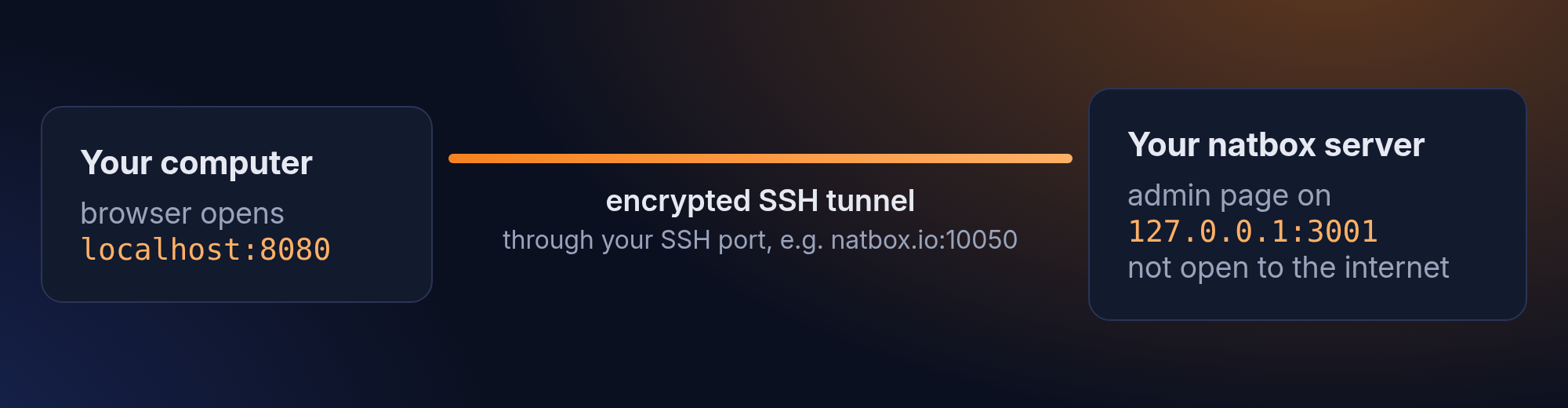
1. Make the app listen only on the server itself
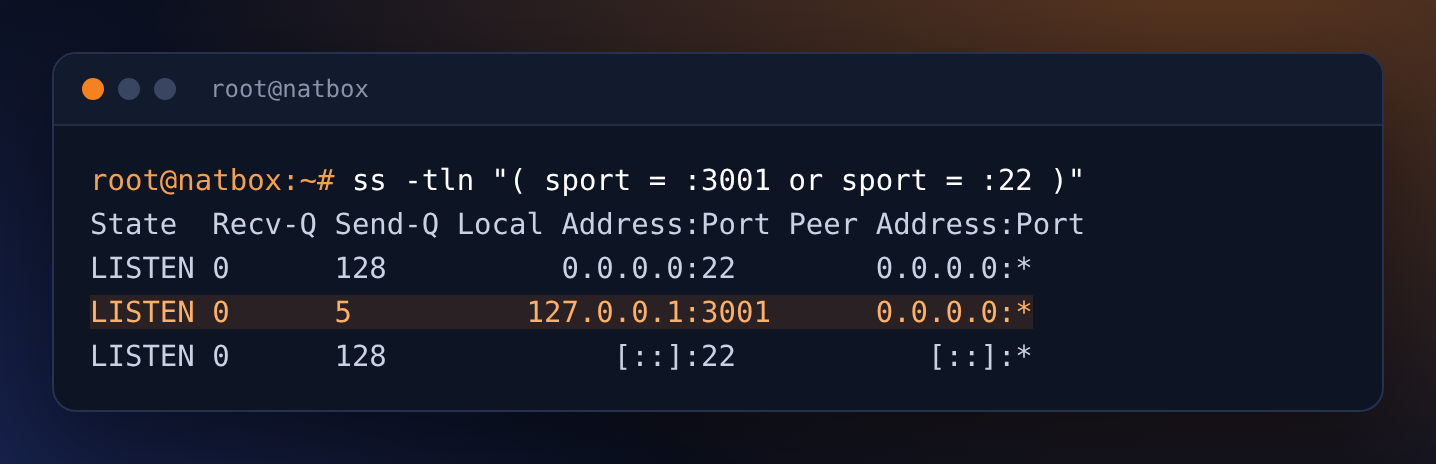
Set your app to listen on 127.0.0.1 (also called localhost) instead of 0.0.0.0. The setting is usually called host, bind or listen address. Then nothing outside the server can reach it. Check with ss:
2. Open the tunnel from your computer
On your own computer (Linux, macOS, or Windows 10 and 11 in PowerShell, which include ssh), run:
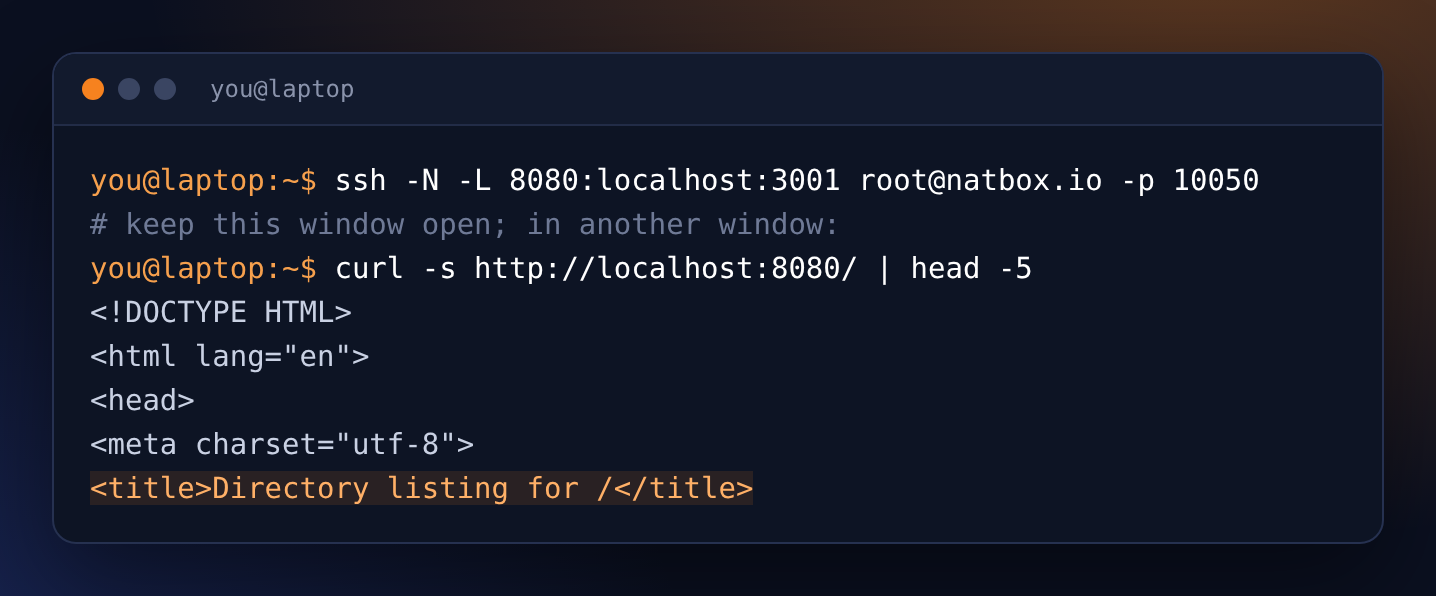
ssh -N -L 8080:localhost:3001 root@natbox.io -p YOUR_SSH_PORT-L 8080:localhost:3001: connections to port 8080 on your computer go to port 3001 on the server.-N: just the tunnel, no shell. Leave the window open while you work; press Ctrl+C to close it.- Use your own SSH port from the client area, the same one you log in with.
3. Open it in your browser
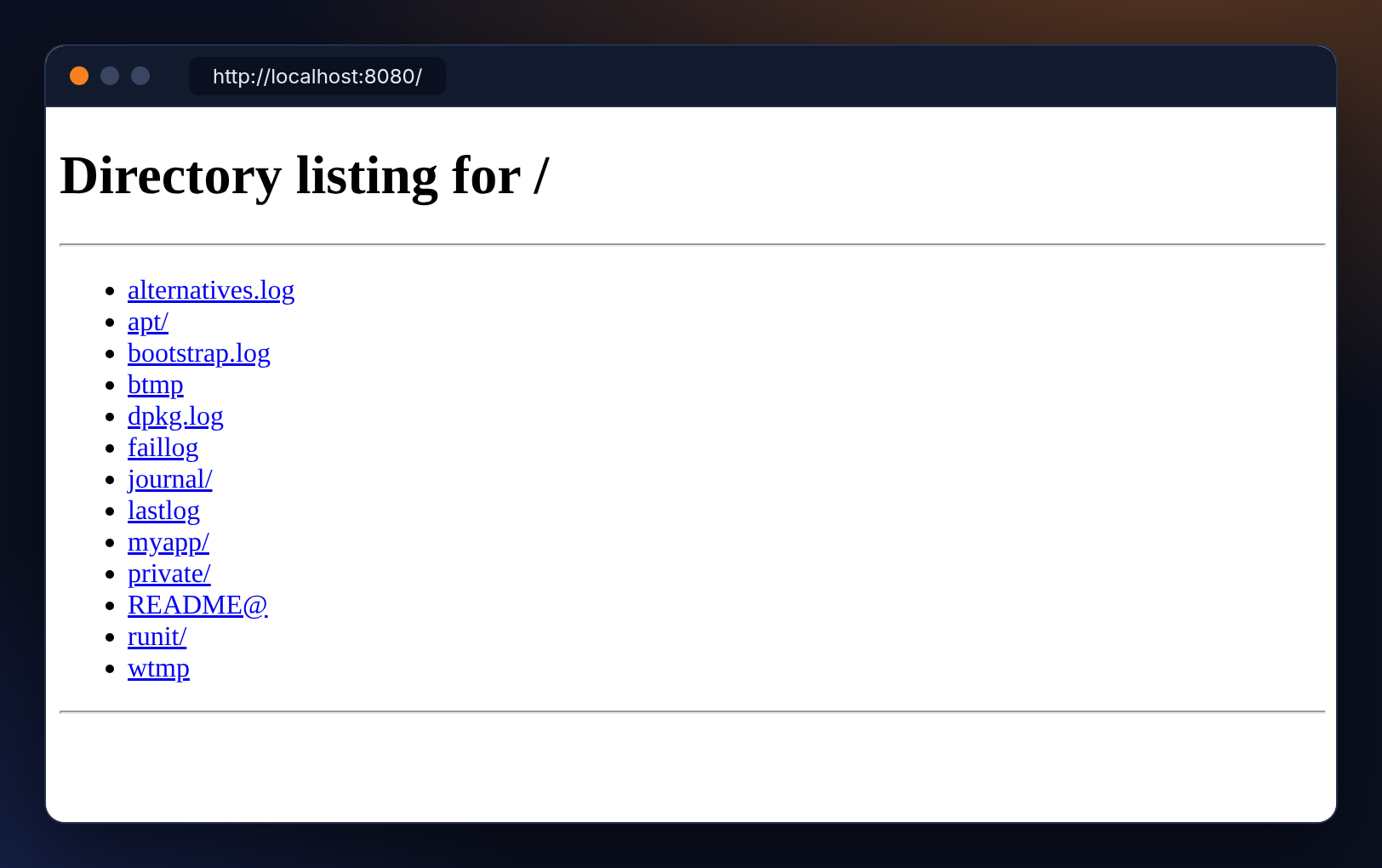
Go to http://localhost:8080. You are looking at the page on your server, carried over the encrypted SSH connection. In our test it is a small private log browser that only listens on 127.0.0.1:
Tips
- Several pages at once: add more
-Loptions, for example-L 8080:localhost:3001 -L 8081:localhost:8443. - Save typing: put it in
~/.ssh/configon your computer, then runssh -N mybox:Host mybox HostName natbox.io Port YOUR_SSH_PORT User root LocalForward 8080 localhost:3001 - "Address already in use": something on your computer already uses 8080. Pick another local number, such as 8090.
- Over IPv6: you can also connect to your server's IPv6 address on port 22, if your network has IPv6.
Good candidates: the admin page of Uptime Kuma, a database tool for PostgreSQL, or any app you only use yourself. For a public website, use a proper reverse proxy with HTTPS instead: see HTTPS with Caddy.
Get new tutorials in Telegram. Follow @natboxio: every new post, plus short server tips.
More from the blog: Disk full? Find what is filling your server, and clean it up safely, Keep commands running after you disconnect, with tmux, What's new at natbox: Telegram bot, snapshots, keeping your trial and CaptchaBox. RSS feed.