 natbox
Blog / tmux
Keep commands running after you disconnect, with tmux
5 November 2026 · Tutorial · By Mohammad AlSaraf

You start a big download or a backup over SSH, your Wi-Fi drops, and the command dies with your connection. tmux fixes that: it keeps a terminal running on the server, so you can disconnect, go home, and pick it up again later exactly where it was.
About 5 minutes. Works on any natbox plan. Commands for Debian and Ubuntu; on AlmaLinux use dnf install -y tmux, on Alpine apk add tmux.
1. Install tmux and start a session
Log in to your server (ssh root@natbox.io -p YOUR_PORT), install tmux and start a session with a name you will remember:
apt install -y tmux
tmux new -s download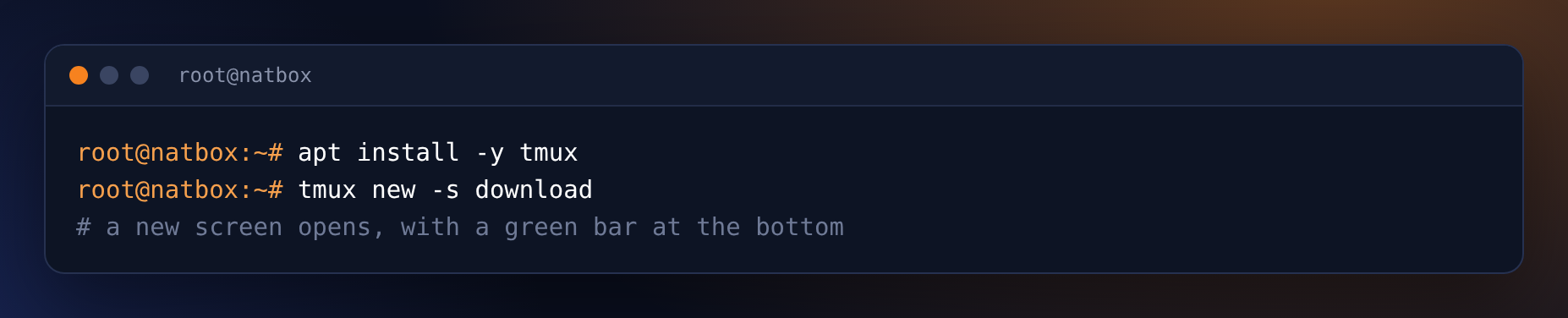
2. Run your long command inside it
You are now inside tmux: it looks like a normal terminal, with a green bar at the bottom showing the session name. Start anything that takes a while. Here we download a 756 MB Debian image:
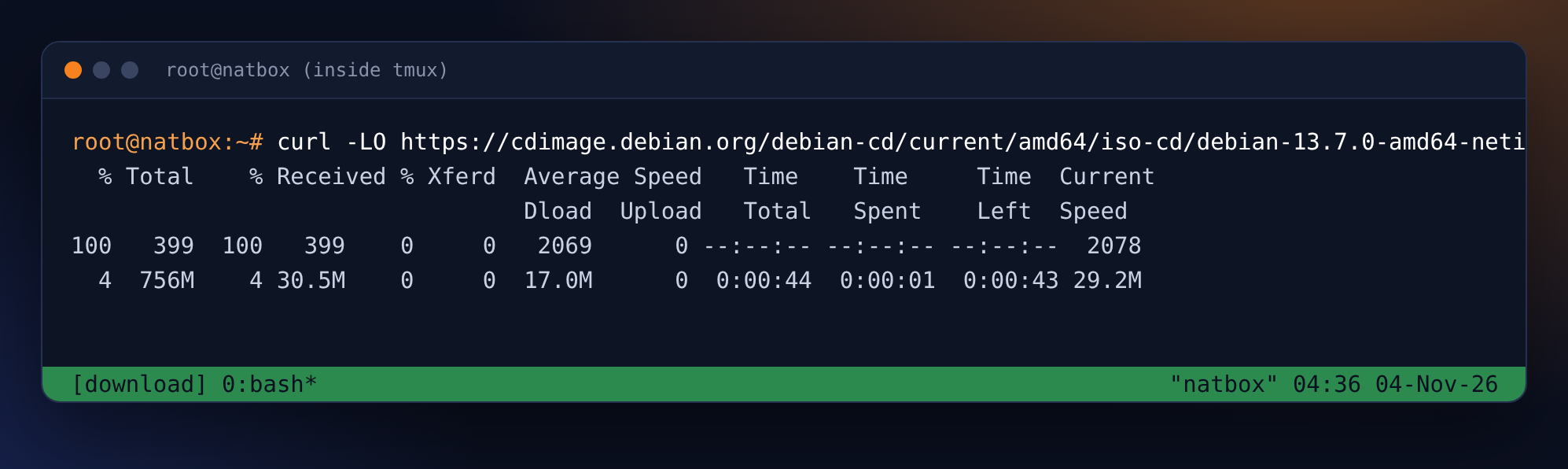
download, window 0.3. Detach, and log out if you like
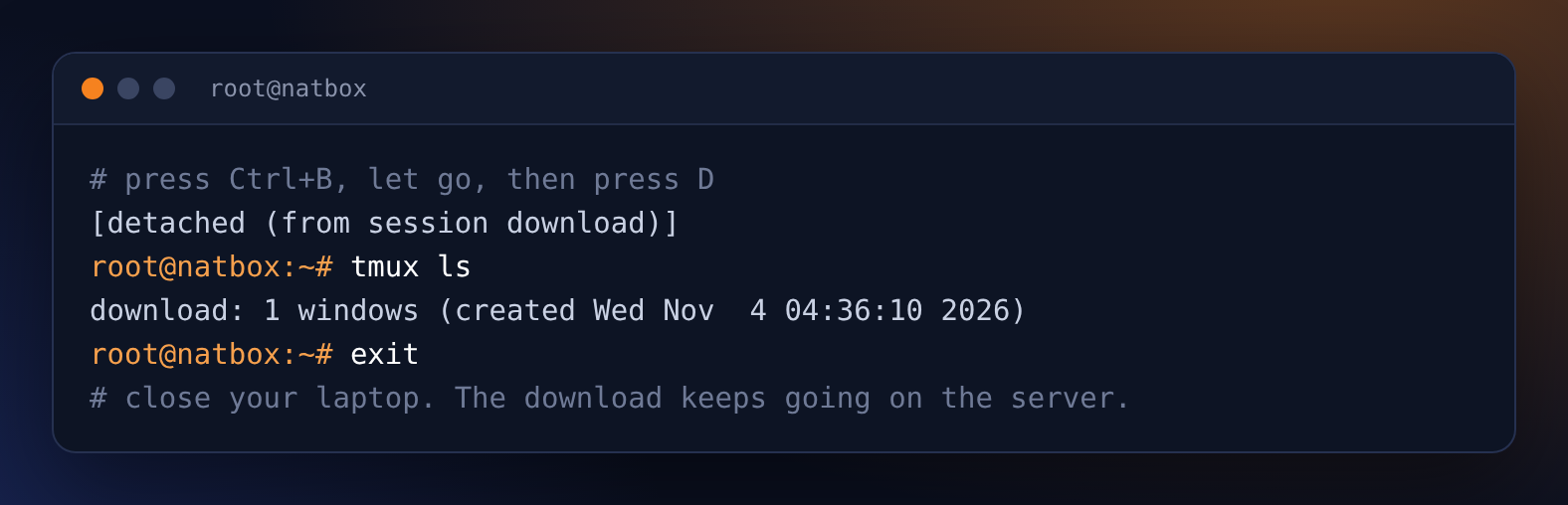
Press Ctrl+B, let go, then press D. You are back in your normal shell, and tmux tells you the session is still alive. tmux ls lists your sessions. You can now close the window, log out, or lose your connection: the command keeps running on the server.
4. Come back to it
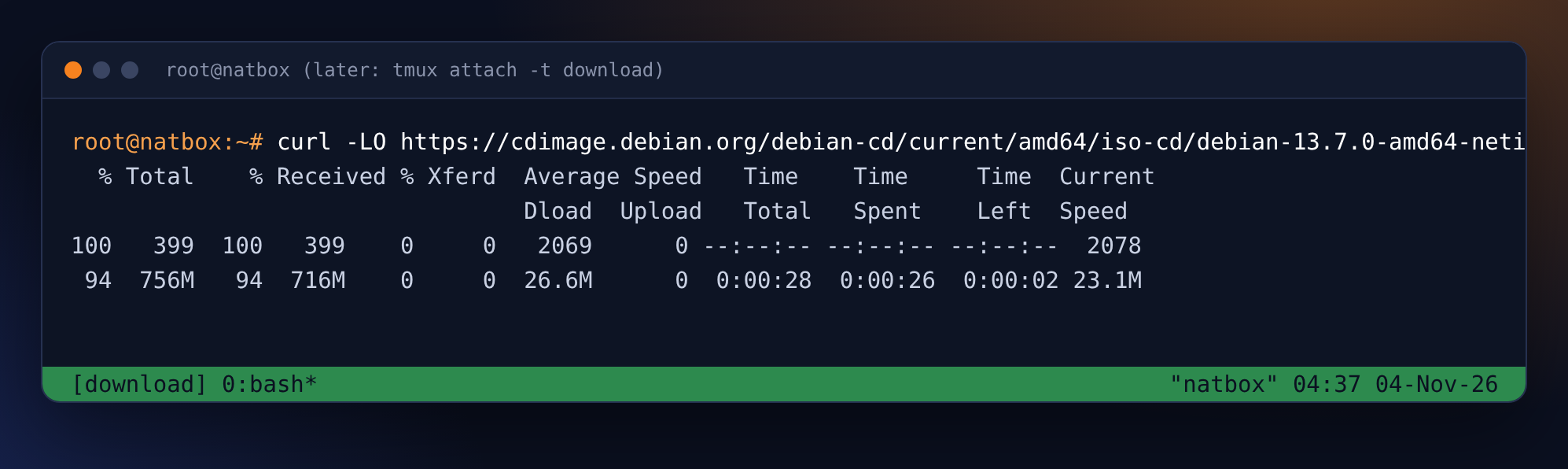
Log in again, from any computer, and reattach:
tmux attach -t downloadEverything is where you left it. Our download had kept going and was at 94%:
When the command has finished, type exit to close the session.
5. Bonus: two panes side by side
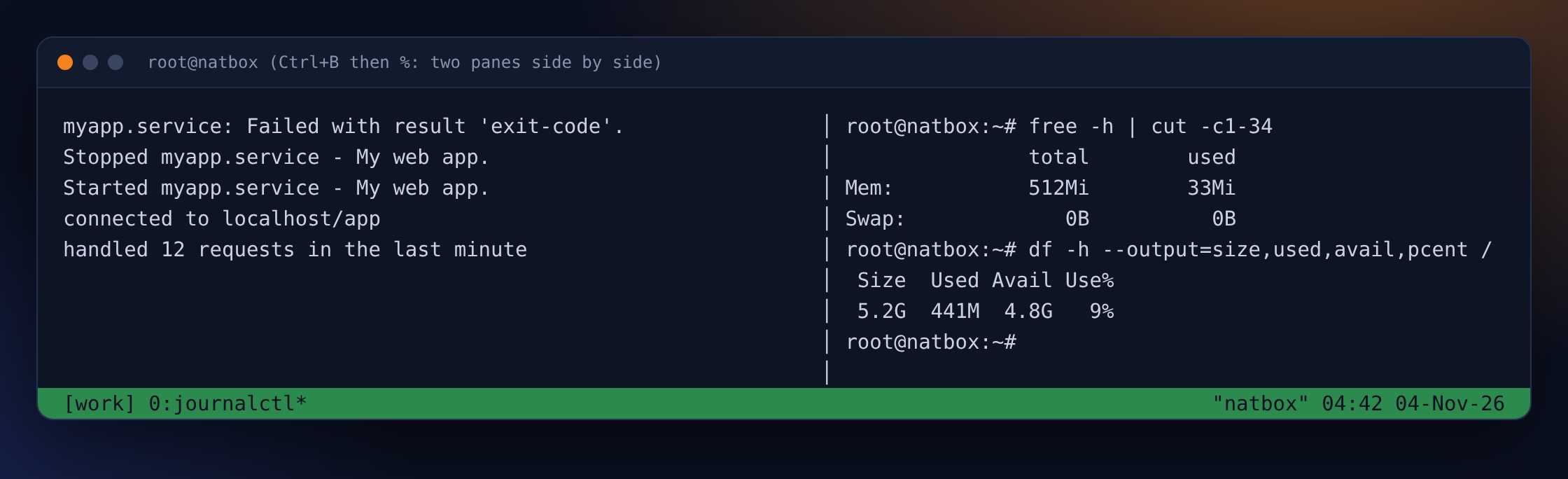
Inside tmux, Ctrl+B then % splits the window in two. Here the left pane follows an app's log with journalctl -fu myapp while the right pane checks memory and disk. Ctrl+B then an arrow key moves between panes.
The keys you need
tmux new -s NAME: start a session.tmux ls: list sessions.tmux attach -t NAME: go back in.- Ctrl+B then D: detach. Ctrl+B then % or ": split side by side or top and bottom.
- Ctrl+B then [: scroll back with the arrow keys or Page Up; Q to stop scrolling.
tmux or a service?
tmux is for jobs you start by hand and want to watch: downloads, backups, updates, a game server console. Anything that should run all the time and start again after a reboot, such as a bot or a website, belongs in a systemd service instead: see Keep an app running. A tmux session does not survive a server restart.
No server yet? Try one free for a month.
Get new tutorials in Telegram. Follow @natboxio: every new post, plus short server tips.
More from the blog: What's new at natbox: Telegram bot, snapshots, keeping your trial and CaptchaBox, Welcome to the natbox blog, and our new video library. RSS feed.