 natbox
Blog / Testing a network
How to test a VPS's network before you buy
19 November 2026 · Guide · By Mohammad AlSaraf

A VPS can have fast CPUs and cheap prices and still feel slow, because the route from you to the data centre is long or loses packets. You can check that before you pay. Most providers publish a "Looking Glass": a page with addresses to ping and files to download. Three free commands and five minutes tell you most of what you need to know. The examples below use our own Looking Glass, but they work the same for any provider.
1. Ping: how far away is it?
Ping sends a small packet and times the answer. Run at least 10, because one reading says little:
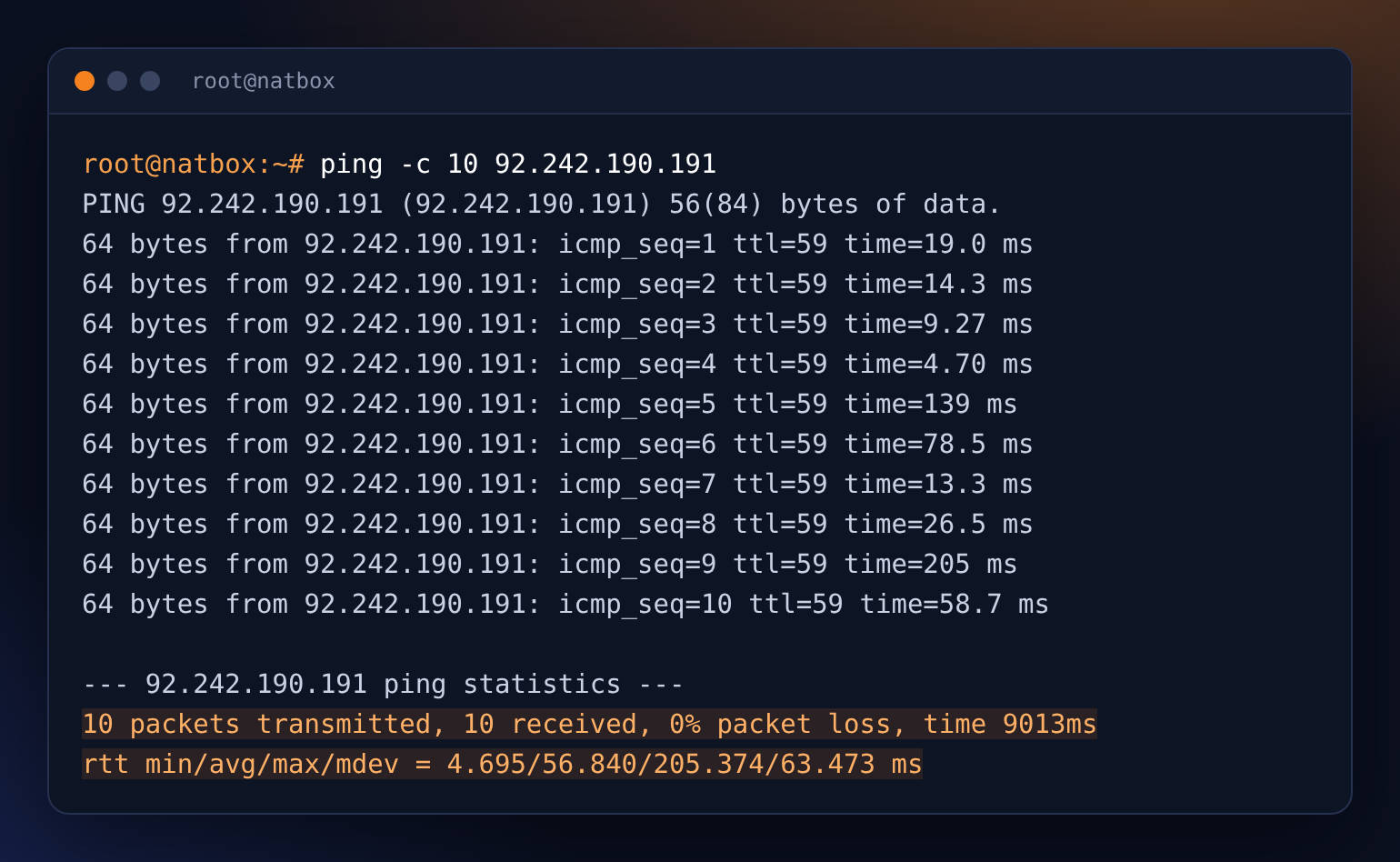
Read the summary line, not the single pings. Packet loss matters most: 0% is what you want; a few percent on a long international route is common in the evening; more than that makes everything slow. Then look at the minimum round trip, which is the real distance, and the average. In this run from another server in the same network, most pings were a few milliseconds but a couple took 100–200 ms, so the average looks worse than the route really is. One slow ping is a blip; many slow pings are a busy route.
As a rough guide: within the same region, under 40 ms; across an ocean, 90–150 ms; the other side of the world, 200–300 ms. For SSH and games, lower is better. For bots, backups and websites aimed at other regions, it hardly matters.
2. mtr: where does the time go?
mtr combines ping and traceroute: it pings every router on the way and shows loss and delay per hop. Install it with apt install mtr-tiny (Linux) or brew install mtr (macOS); on Windows, tracert shows the hops without the statistics.
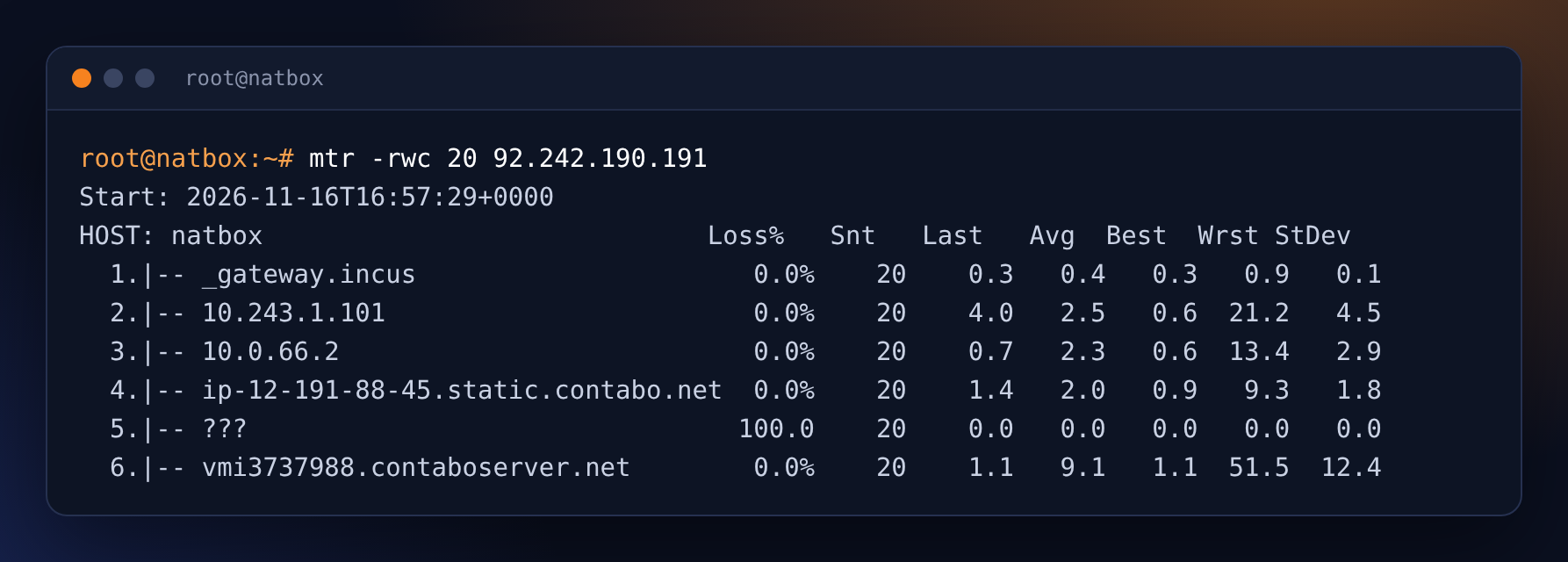
Two things confuse people. Hops showing ??? or 100% loss are routers that simply don't answer pings; that is fine as long as the hops after them show no loss. And loss that appears at one hop but not at the following ones is a router deprioritising pings, not real loss. Only loss that starts at a hop and continues to the last line is real. If you see that, note where it starts: inside your own provider, on an international link, or at the destination.
3. A test download: how fast is it really?
Ping uses tiny packets. A download shows what you get when the line is full. Use a large file, at least 100 MB, so the speed has time to settle:
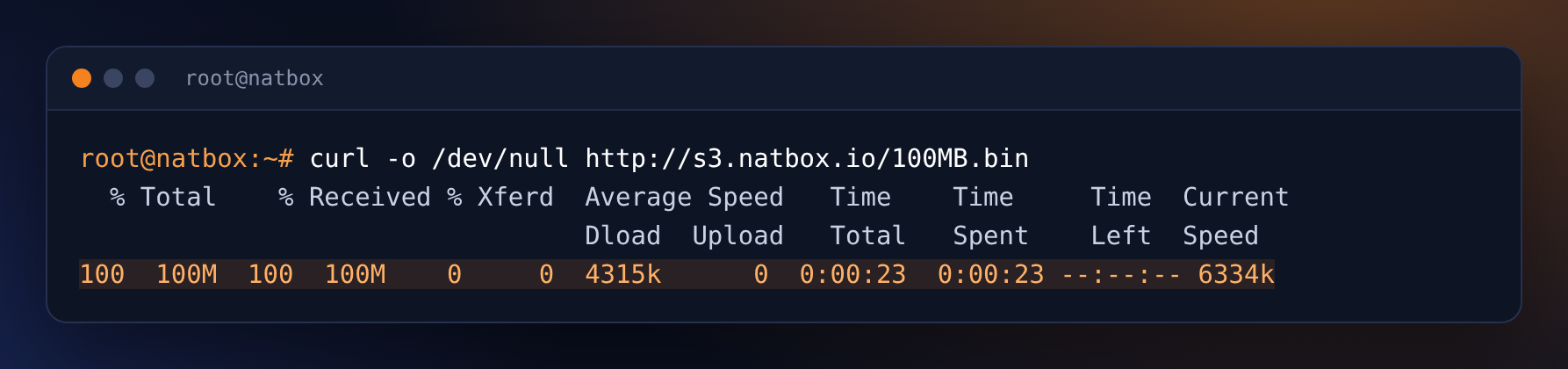
curl's Average Dload column is in kilobytes per second: multiply by 8 for kilobits. 4,315 kB/s is about 35 Mbit/s. On Windows, the same command works with -o NUL. Compare the result with the plan's advertised speed (ours is 100 Mbit/s per server), and run it at the time of day you'll use the server most: in the evening many international routes slow down.
Putting it together
- Low ping, no loss, fast download: a good route for you. Buy with confidence.
- High ping, no loss: the distance is long but the route is clean. Fine for bots and websites; SSH will feel a little slow. On a long route, turning on BBR on your server helps downloads.
- Loss to the last hop: expect slow downloads and dropped connections at those times. Test again at another hour, and try another of the provider's locations.
A Looking Glass shows the network. To test the rest (CPU, disk, your own software), use a trial: ours is a free server for a month, or a burner server for 24 hours.
Get new tutorials in Telegram. Follow @natboxio: every new post, plus short server tips.
More from the blog: China blocked our IPv4 address overnight, Black Friday 2026: yearly NAT VPS 50% off, for life, How much RAM does a Discord or Telegram bot need?. RSS feed.